

1. Installing Utilities for HubSpot
Installing Utilities for HubSpot
Installing Utilities for HubSpot
App Installation Process Screenshots
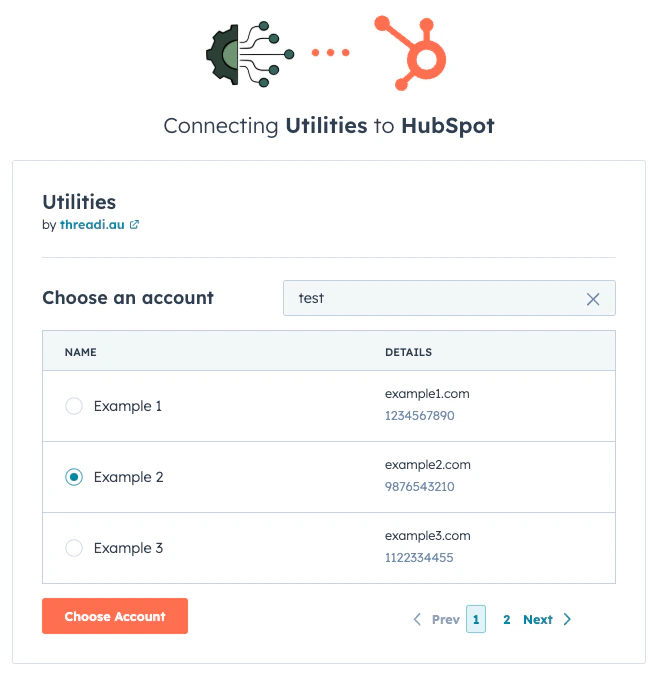
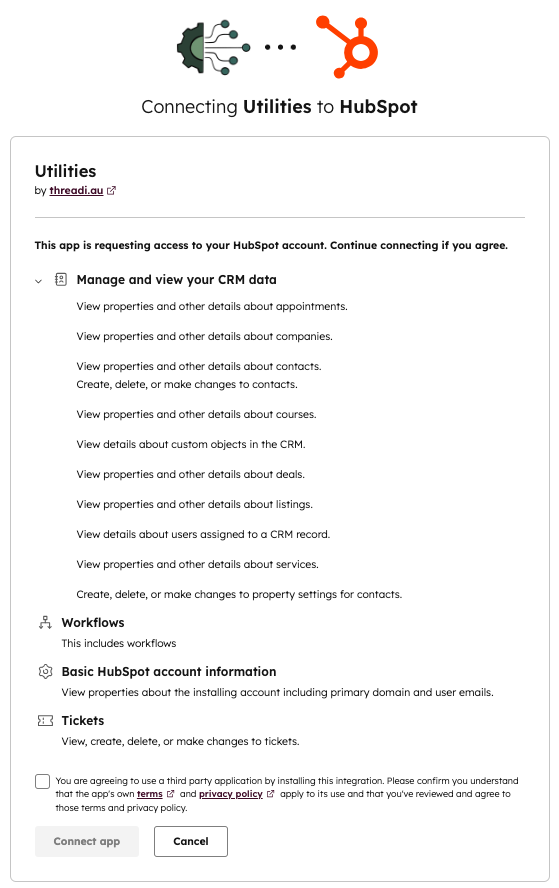
2. Subscriptions
Subscriptions
Subscriptions
3. Custom Workflow Actions
Custom Workflow Actions
Custom Workflow Actions
- An active Utilities for HubSpot subscription
- Access to HubSpot Workflows
- Contact
- Company
- Deal
- Ticket
- Appointment
- Course
- Listing
- Service
- Custom Object
- Tasks
- Meetings
- Merging
Show Mark Associated Tasks as Complete
Show Mark Associated Tasks as Complete
Mark Associated Tasks as Complete
- Screenshot #1
- Screenshot #2
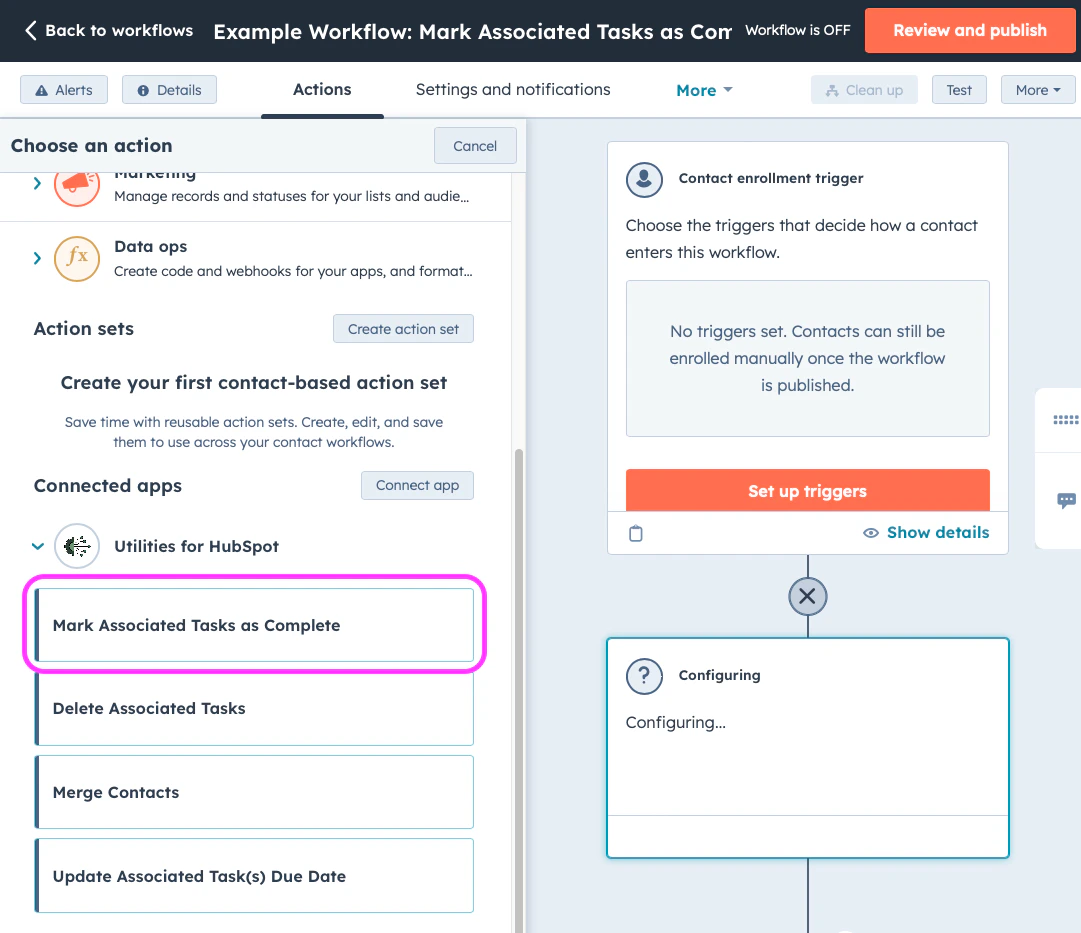
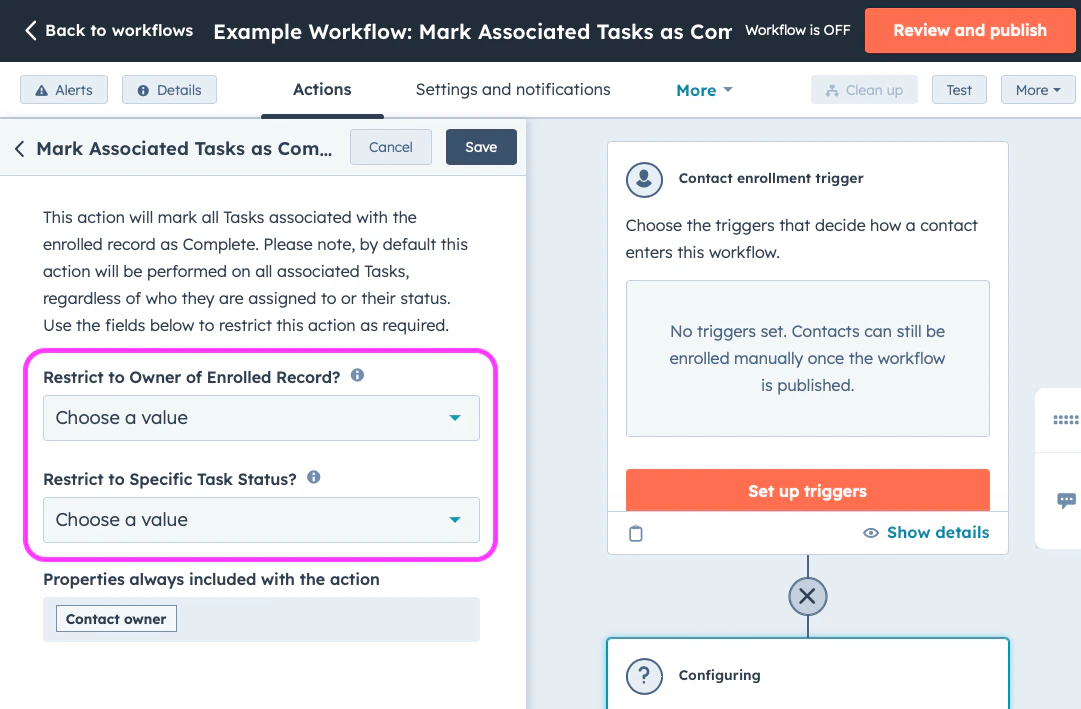
When deployed within a HubSpot workflow, this action marks all Tasks associated with the enrolled record as Complete ✅. By default, this action is performed on all Tasks associated with the enrolled record.
If this default behaviour does not suit your use case, the workflow action can be restricted using any combination of the following options:
- Tasks sharing the same as the enrolled record
- Tasks that have a specific
Utilities for HubSpot - Custom Workflow Action - Mark All Tasks as Complete
Show Delete Associated Tasks
Show Delete Associated Tasks
Delete Associated Tasks
- Screenshot #1
- Screenshot #2
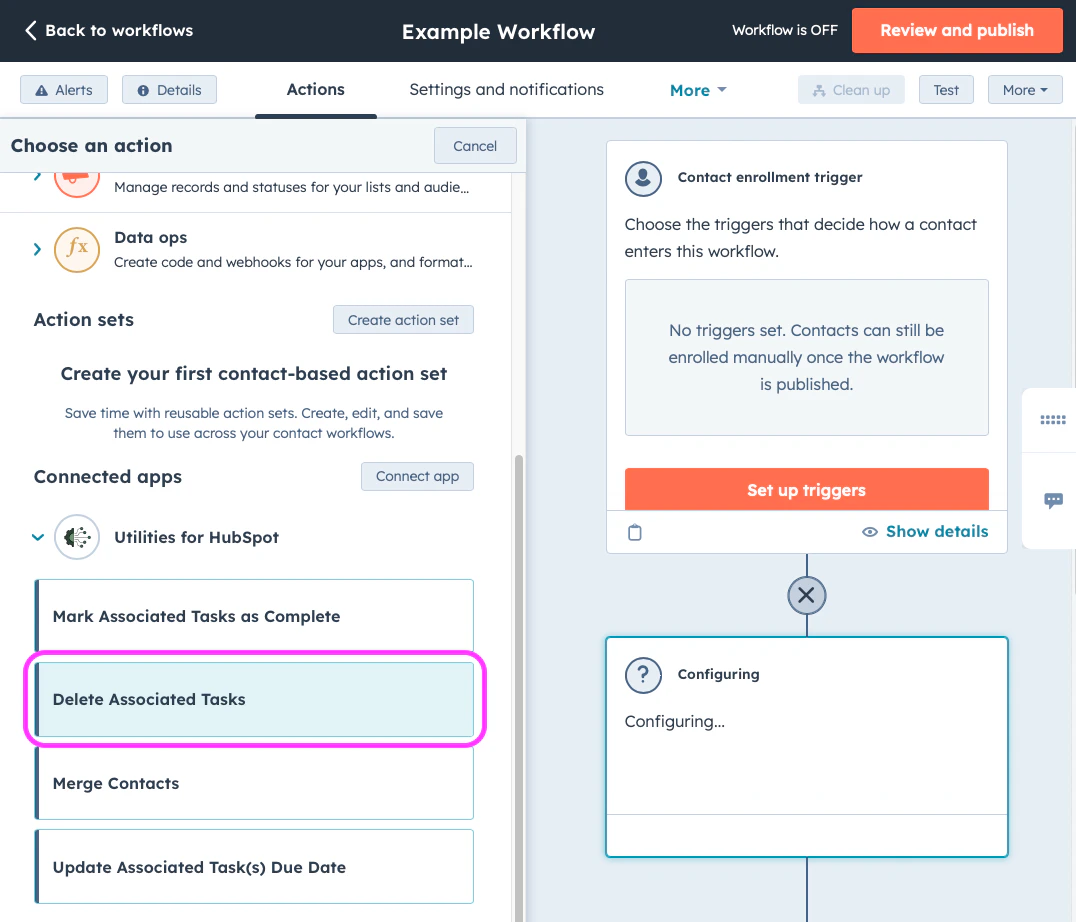
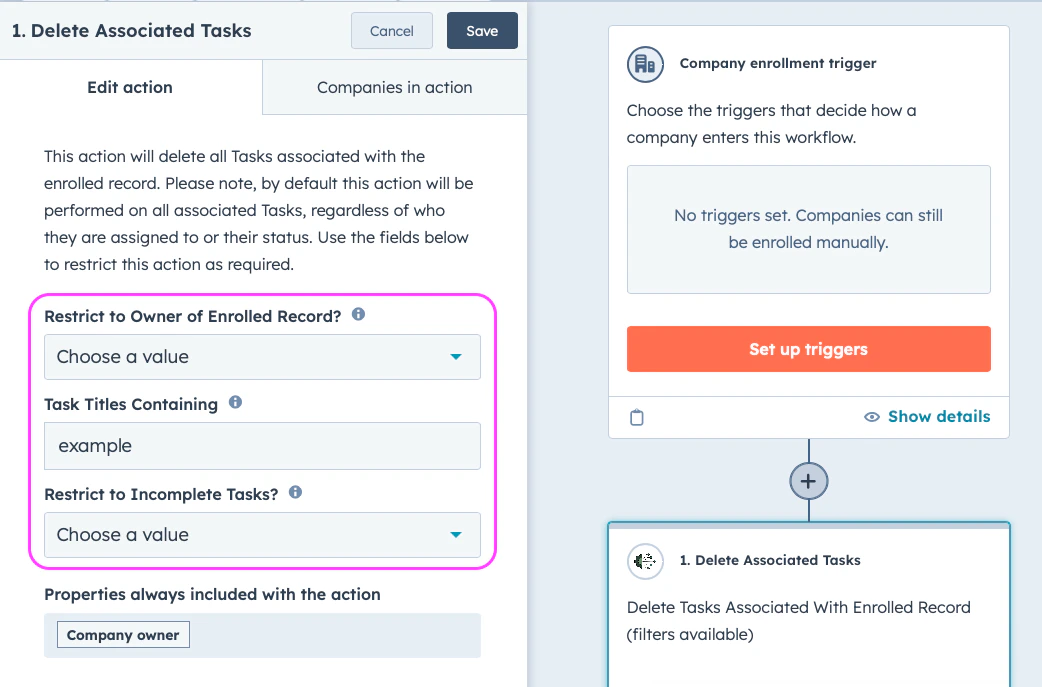
When deployed within a HubSpot workflow, this action deletes all Tasks associated with the enrolled record. By default, this action is performed on all Tasks associated with the enrolled record.
If this default behaviour does not suit your use case, the workflow action can be restricted using any combination of the following options:
- Tasks sharing the same as the enrolled record
- Tasks with Titles that contain a search string of your choosing
- Tasks that
Utilities for HubSpot - Custom Workflow Action - Delete Associated Tasks
Show Update Task Due Dates
Show Update Task Due Dates
Update Task Due Dates
- Screenshot #1
- Screenshot #2
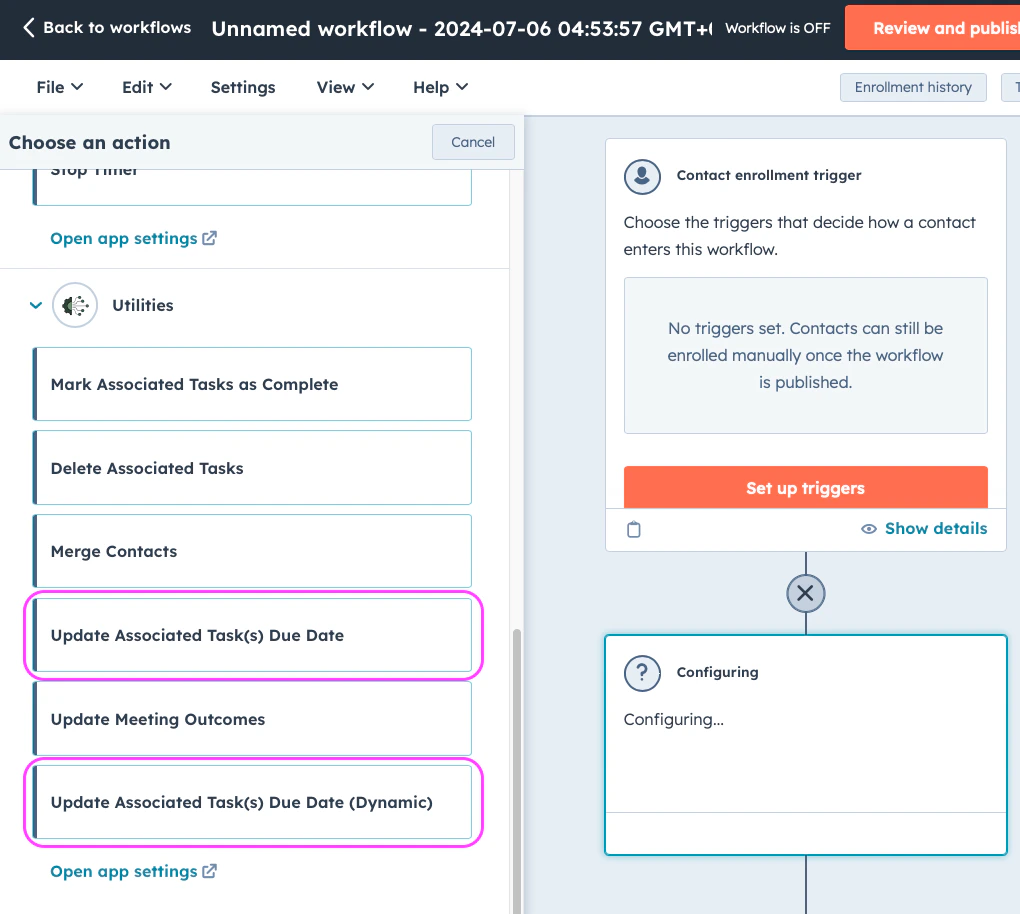
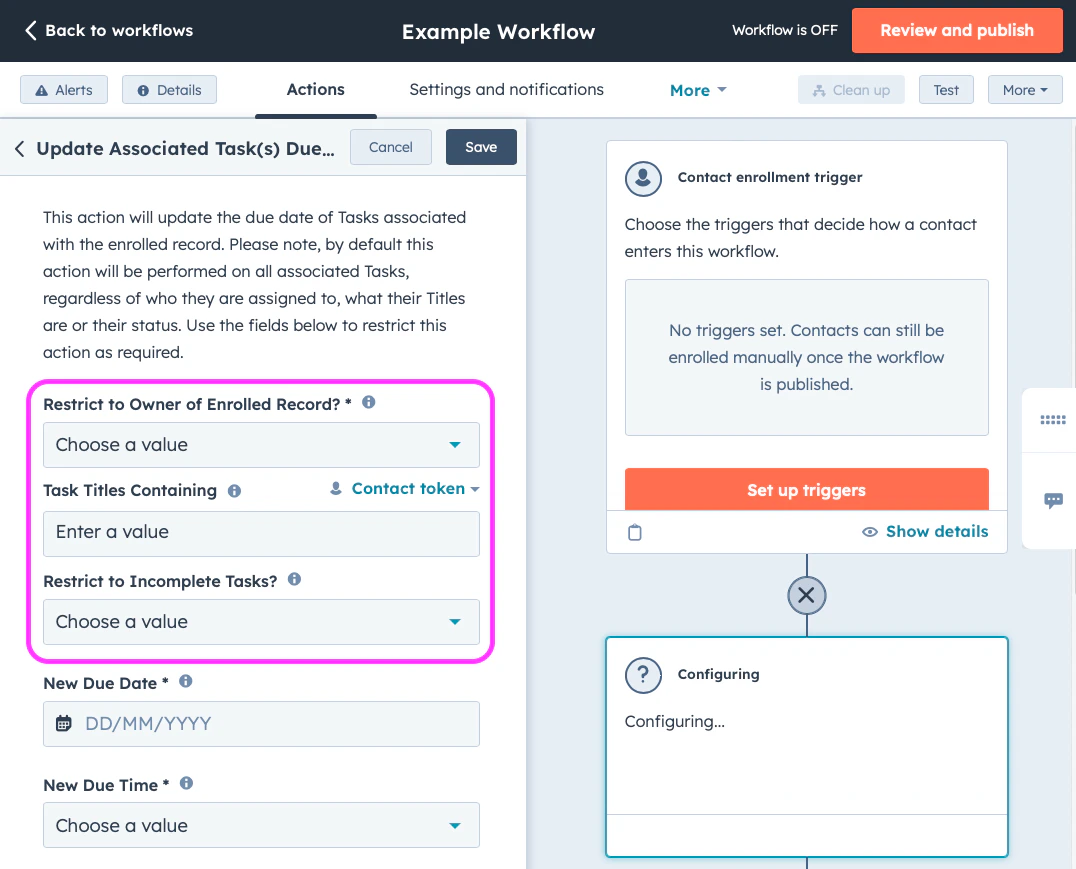
When deployed within a HubSpot workflow, these actions update the Due Dates of all Tasks associated with the enrolled record. By default, this action is performed on all Tasks associated with the enrolled record.
If this default behaviour does not suit your use case, the workflow action can be restricted using any combination of the following options:
- Tasks sharing the same as the enrolled record
- Tasks with Titles that contain a search string of your choosing
- Tasks that
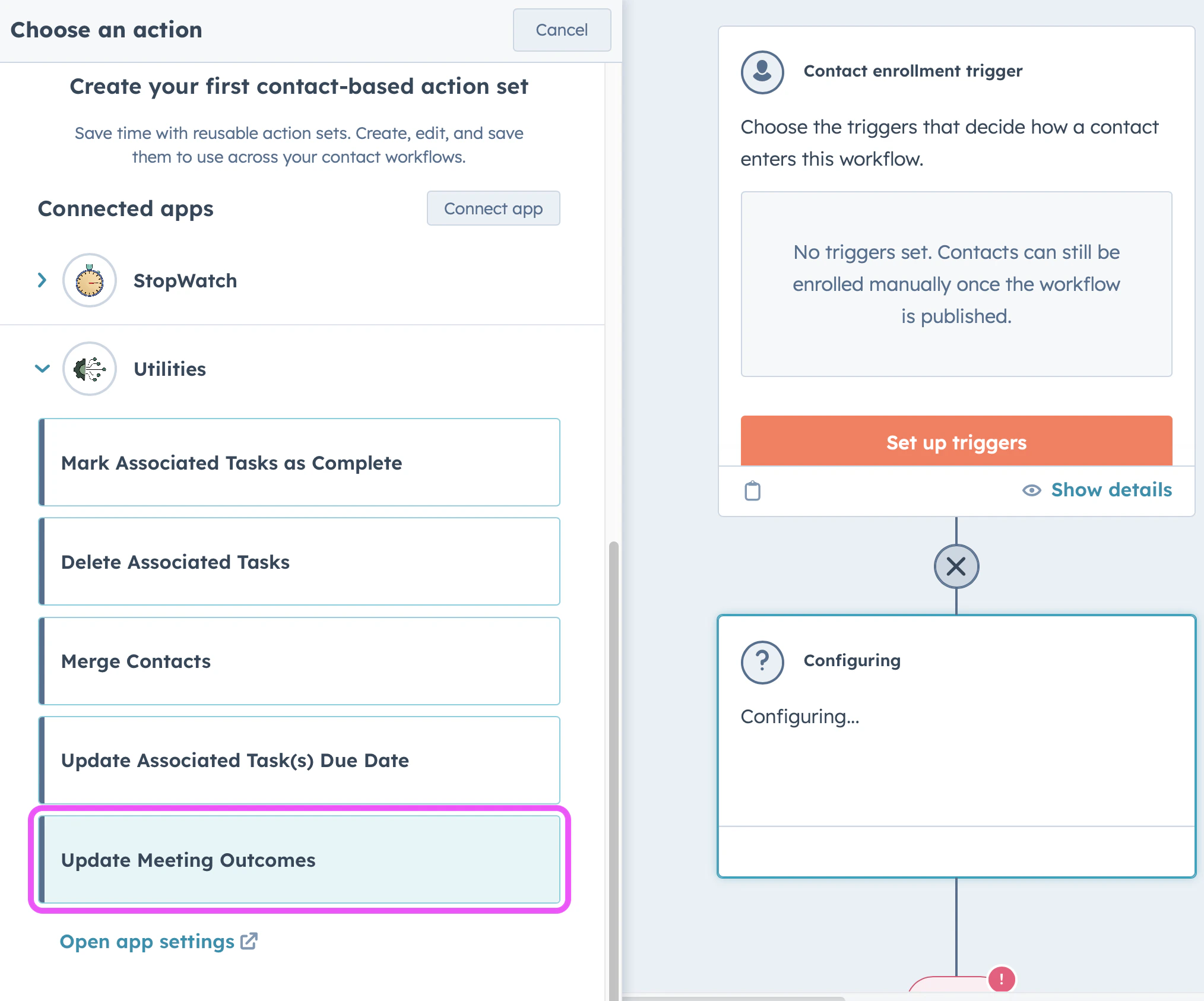
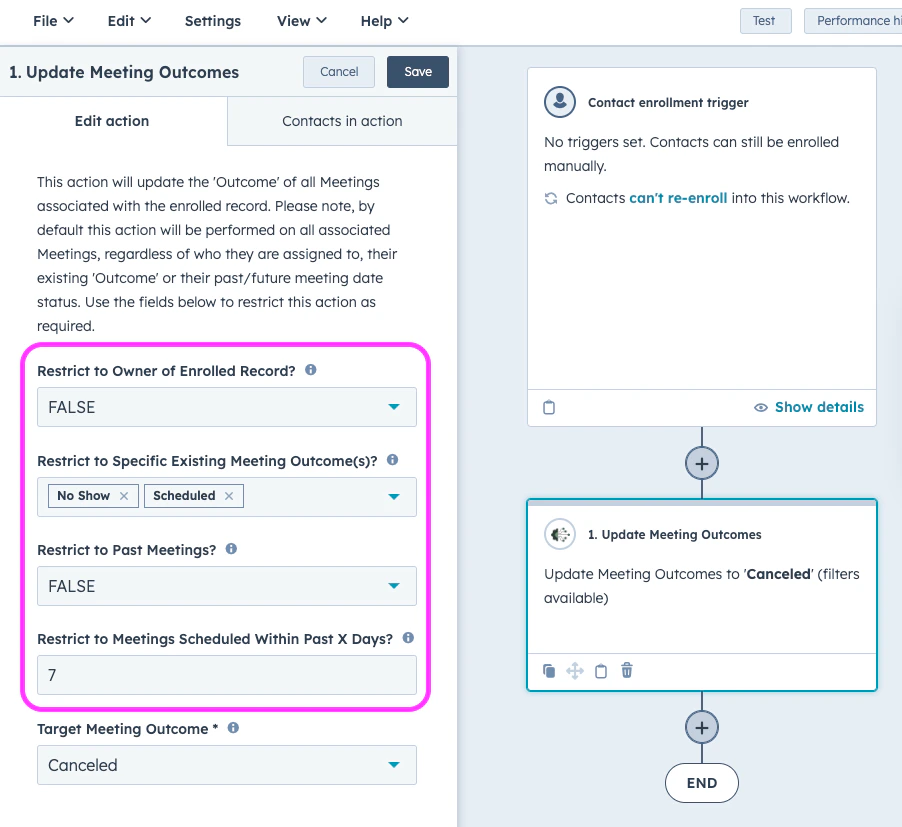
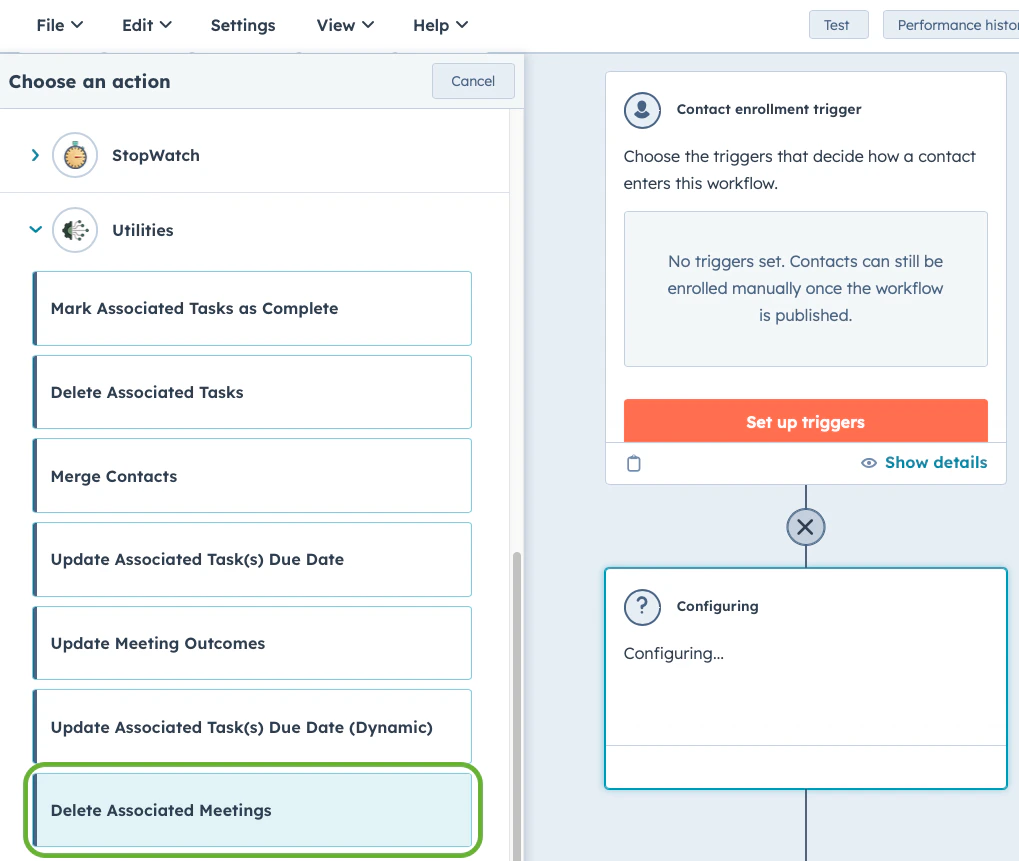
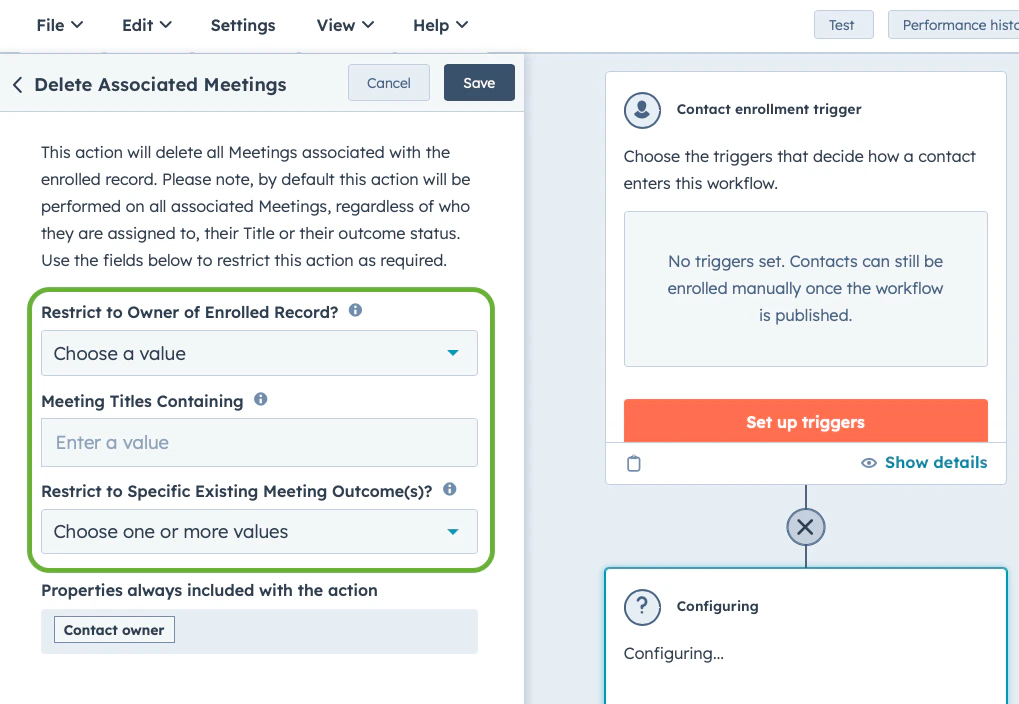
Below is a short screen recording showing a basic example of how to deploy this feature.
Utilities for HubSpot - Custom Workflow Action - Update Task Due Dates
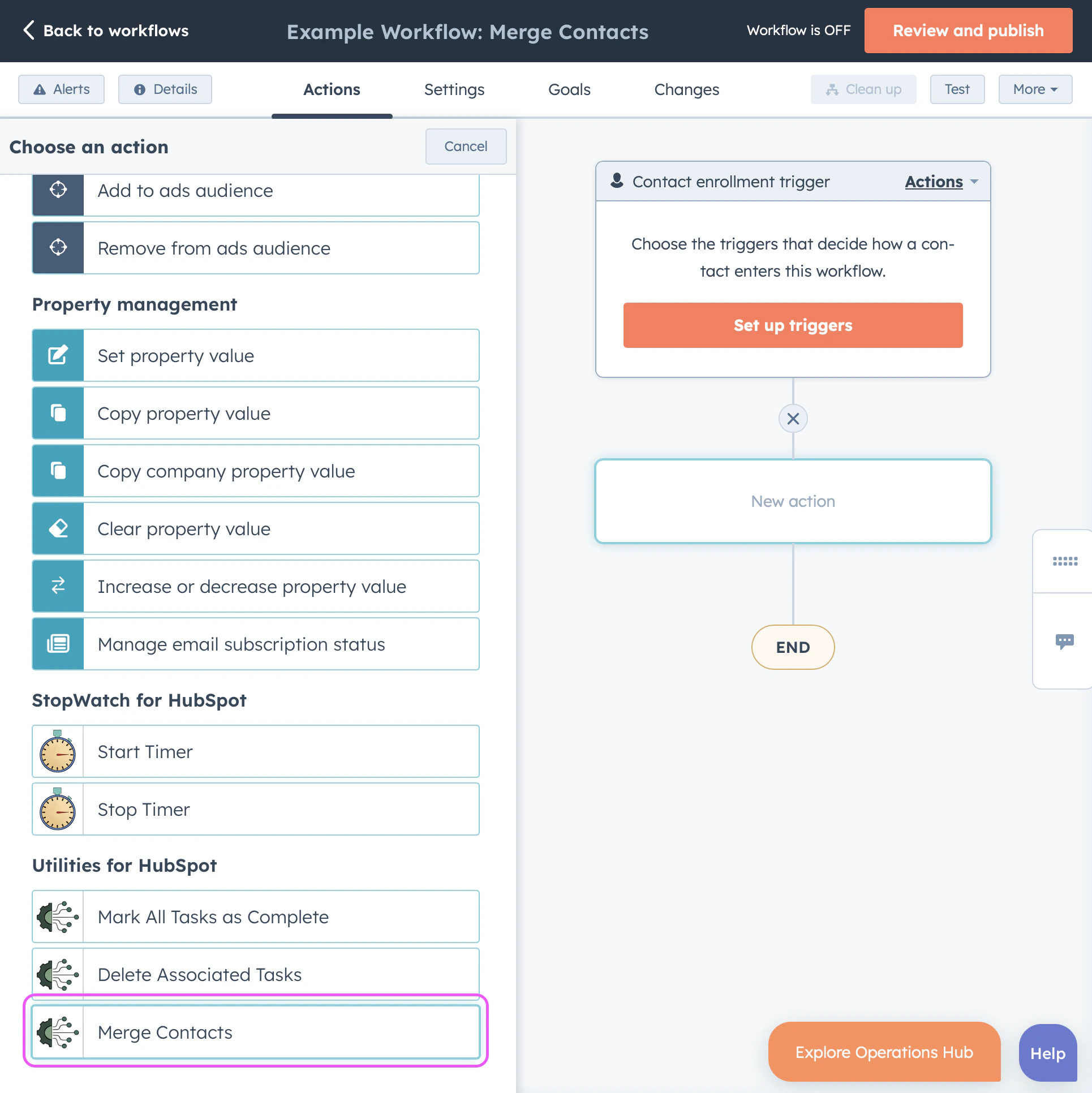
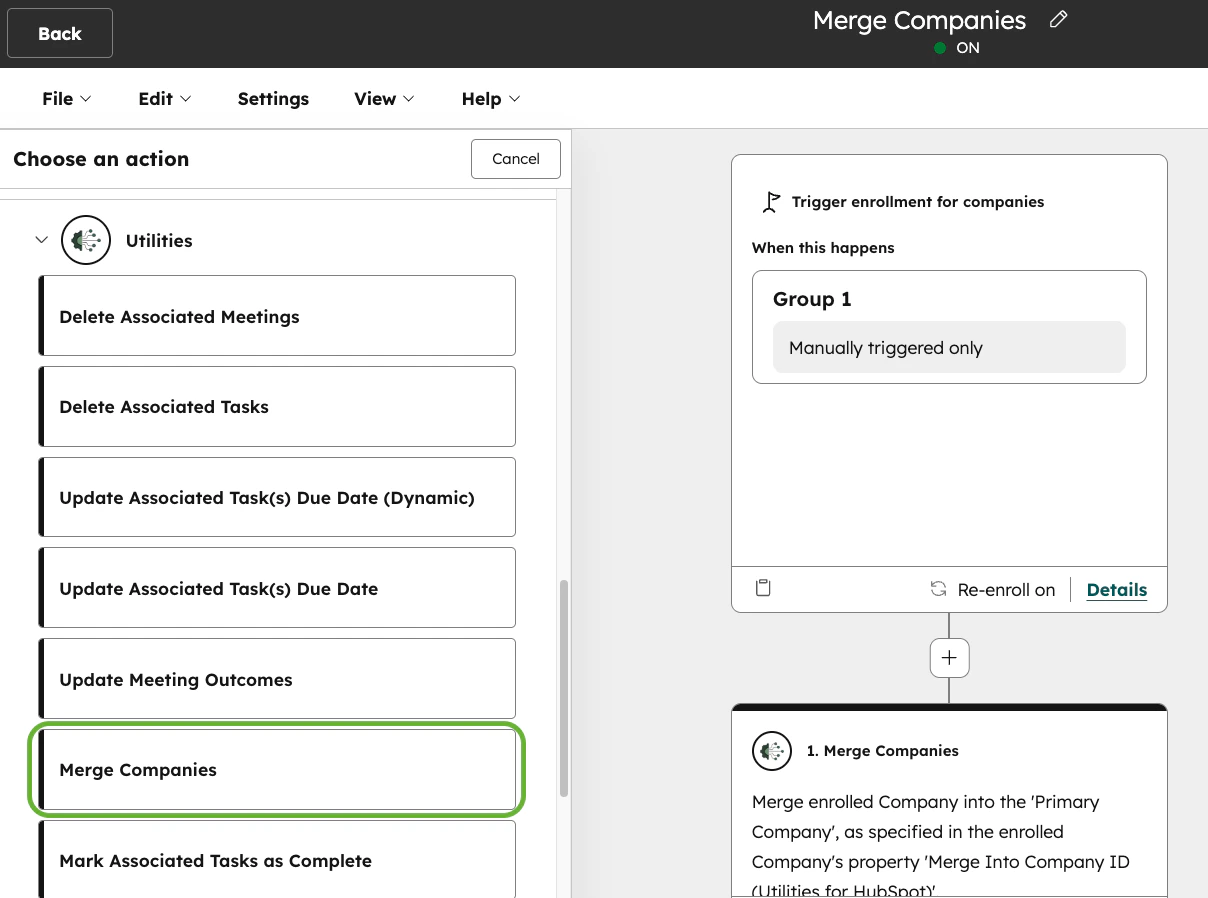
4. Reassign Tasks When Record Owner Changes
Reassign Tasks When Record Owner Changes
Reassign Tasks When Record Owner Changes
- In order to use this feature, you must have an active Utilities for HubSpot subscription.
- By default, this feature is disabled for all HubSpot users within your account. To use this feature, you are required to actively enable this feature per HubSpot user within the app settings.
- Contact
- Company
- Deal
- Ticket
- Appointment
- Course
- Listing
- Project
- Service
- Screenshot #1
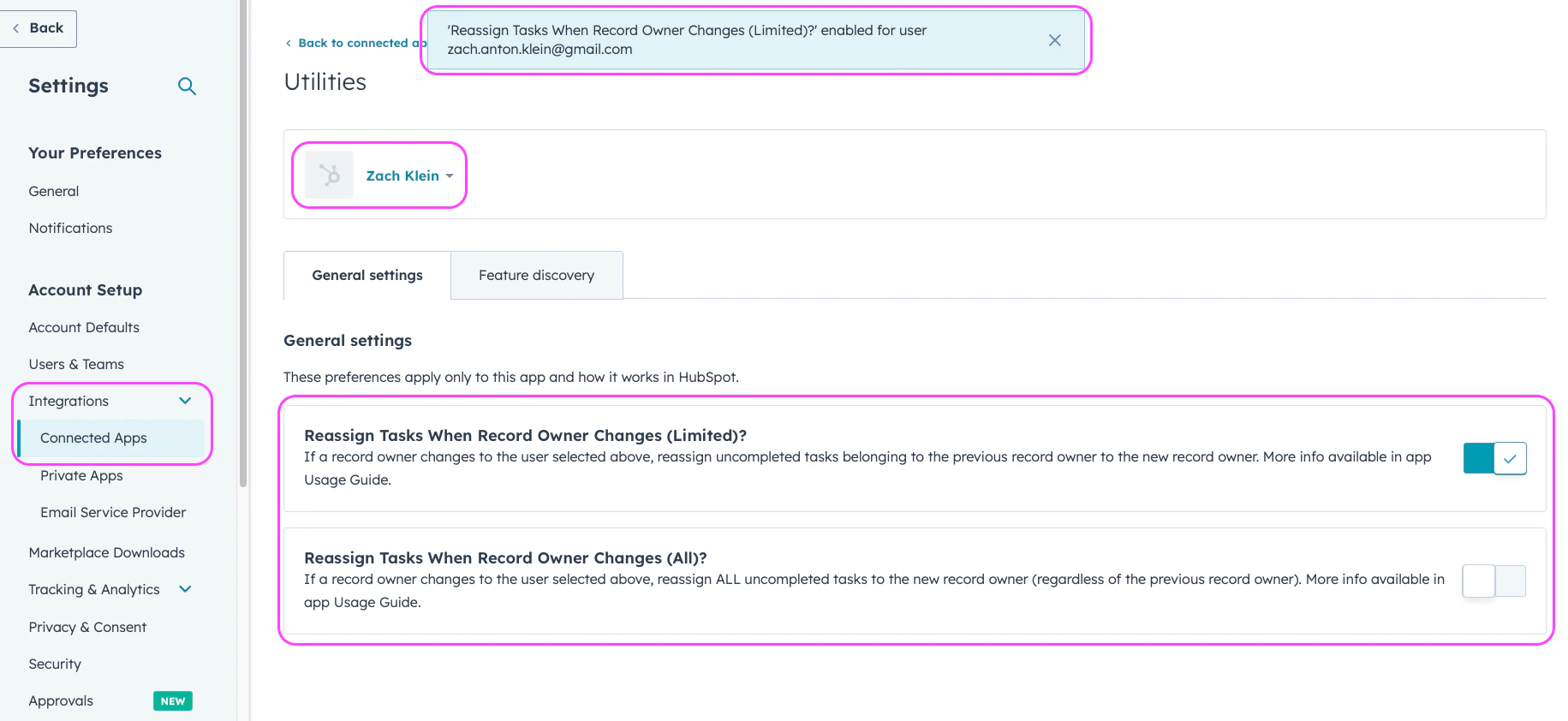
Navigate to HubSpot Settings
Integrations > Connected Apps
Utilities > Settings
Utilities for HubSpot - Reassign Tasks When Record Owner Changes
5. Google Maps Address Search
Google Maps Address Search
Google Maps Address Search
- In order to use this feature, you must have an active Utilities for HubSpot subscription
- This feature is hidden by default, but can be manually added to Contact and Company CRM views
- Contact
- Company
- Screenshot #1
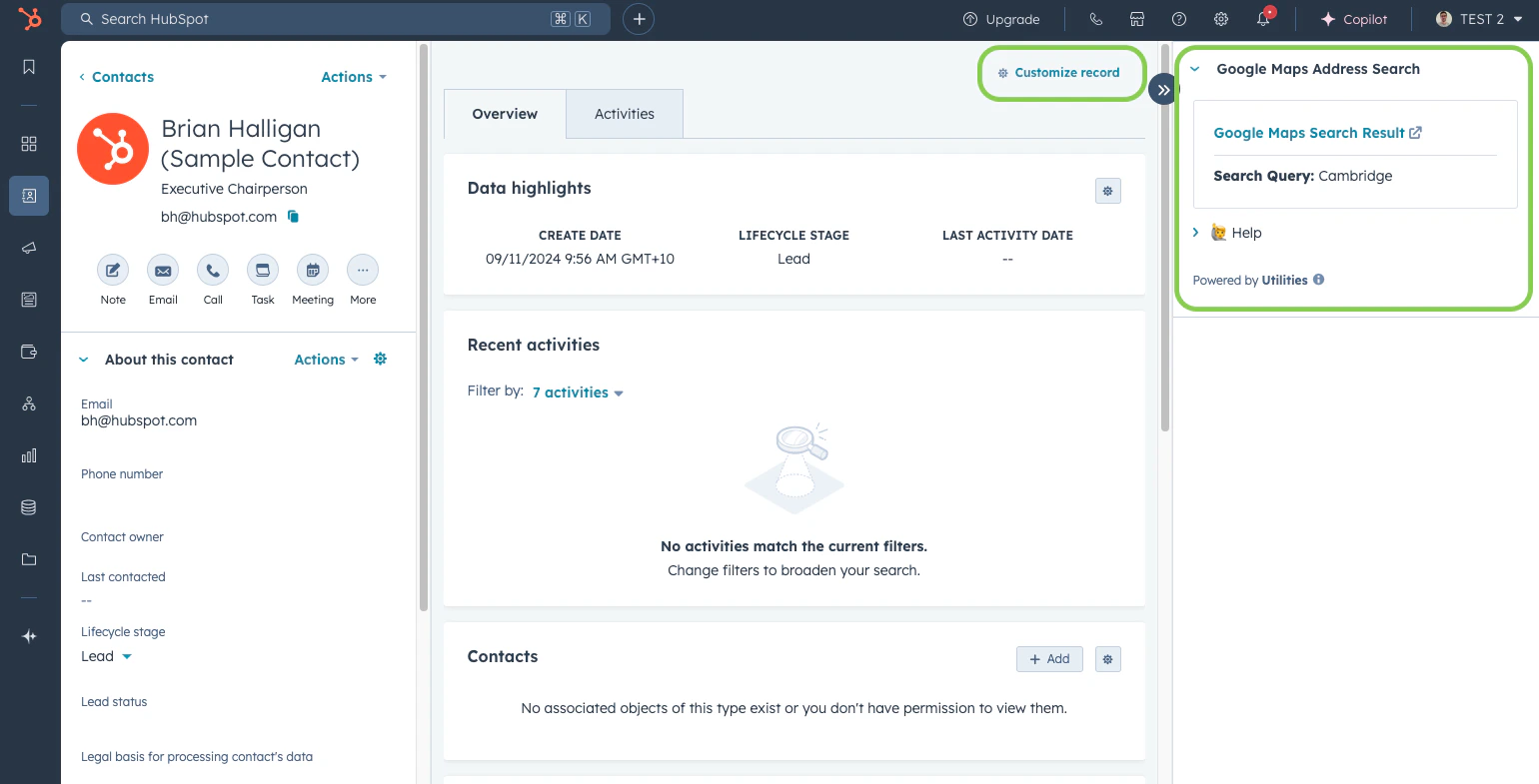
- #1 Via Settings
- #2 Via CRM Record
Navigate to HubSpot Settings
Objects > Contacts or Companies
Record Customization > Select CRM View
Add App Card
Save and Exit
- Street address
- City
- State/Region
- Country/Region
6. App Settings
App Settings
App Settings
User-Specific Settings
By default, user-specific settings can be configured by anyone with App Marketplace Access permissions. To access Utilities for HubSpot settings, follow these steps:Navigate to HubSpot Settings
Navigate to Connected Apps
Find & Click 'Utilities'
- User Settings
7. Uninstall App
Uninstall App
Uninstall App
Navigate to HubSpot Settings
Navigate to Connected Apps
Find 'Utilities' and click 'Actions'
Utilities for HubSpot is created and managed by Thread Integrations, a small Australian business providing expert system integration, software development & analytics services.